The best budget production monitor got an upgrade
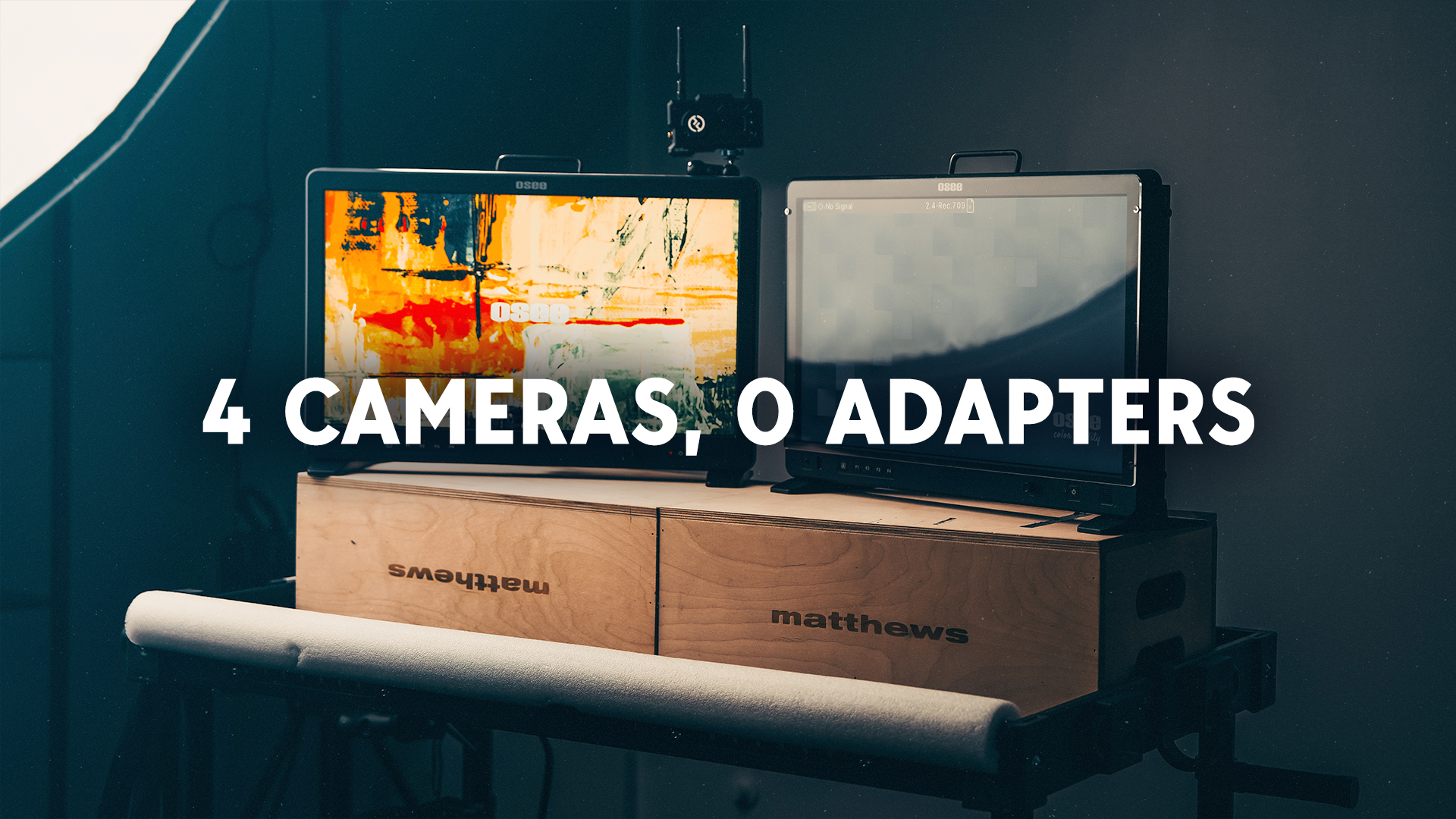
Osee Mega 22S vs. Mega 22S4
There is a $261 difference between the Osee Mega 22S and the Mega 22S4.
I used the 22S for about a year, and it took me a lot of trial and error and time and extra equipment to get four feeds running into this monitor. And it wasn't nearly as robust as I wanted it to be.
I couldn't really click between feeds really easily. I had to do it on the Blackmagic Multi-View 4 HD. It was kind of a whole thing.

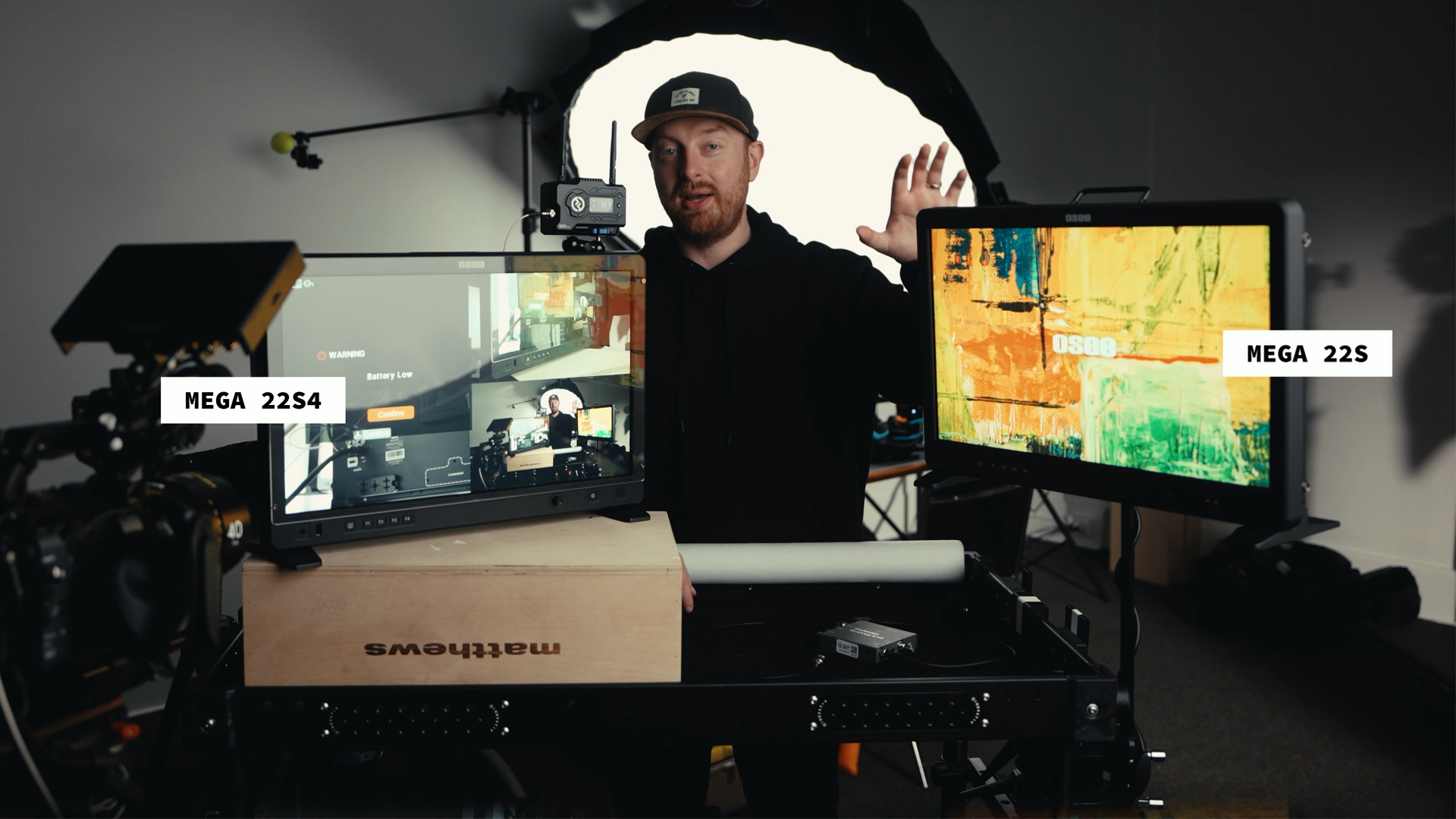
But when I went to NAB this year, I swung by the Osee booth and saw this. And this is the same monitor as the 22S, but it has three SDI inputs and three HDMI inputs, as well as SDI outs and HDMI outs.
But the very interesting thing about this is you can have all these feeds and not need to use one of these boxes to do it.
So, I was very interested in checking this one out.
Why I Wanted To Get This Video Out Fast
I just unboxed this thing last week, but I recently made the video about the Mega 22S. So, I wanted to get this video out as fast as I possibly could just so people know that this is also an option.
It's the same size. It's the same 1500 nit screen. It also has monitoring tools, but the 22S4 has, like I said, those three HDMI inputs and three SDI inputs.

Testing The Inputs
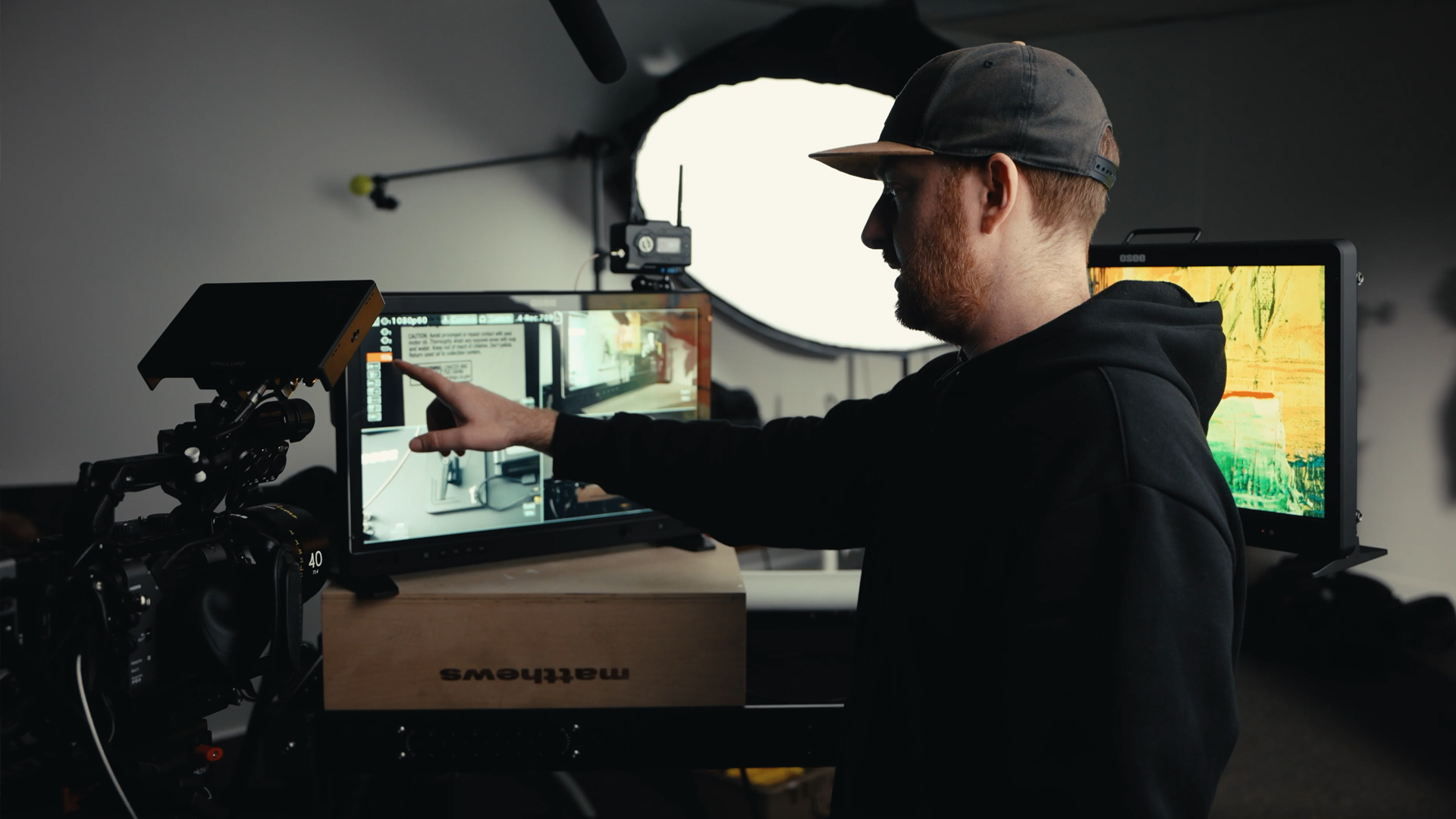
I've made my FX3 this window right here, from the ports to actually the connection in the back of the monitor right here. So, you see it's live.
And I just want to go through all of this. This is HDMI 2. So, I'm just going to go toggle over to HDMI 2.
There's all kinds of different layouts you can use. But now, if a client wanted to see HDMI 2, you can toggle over to this, and it's as simple as that.
It's really a lot easier than using this Blackmagic multi-view.

Switching Between Horizontal And Vertical
This is what I wanted to show you guys right here.
If you want to switch between, on a stand, horizontal and vertical, you can take this off. And this is just like a dovetail plate that you can actually turn sideways and plug it in here and lock it off.
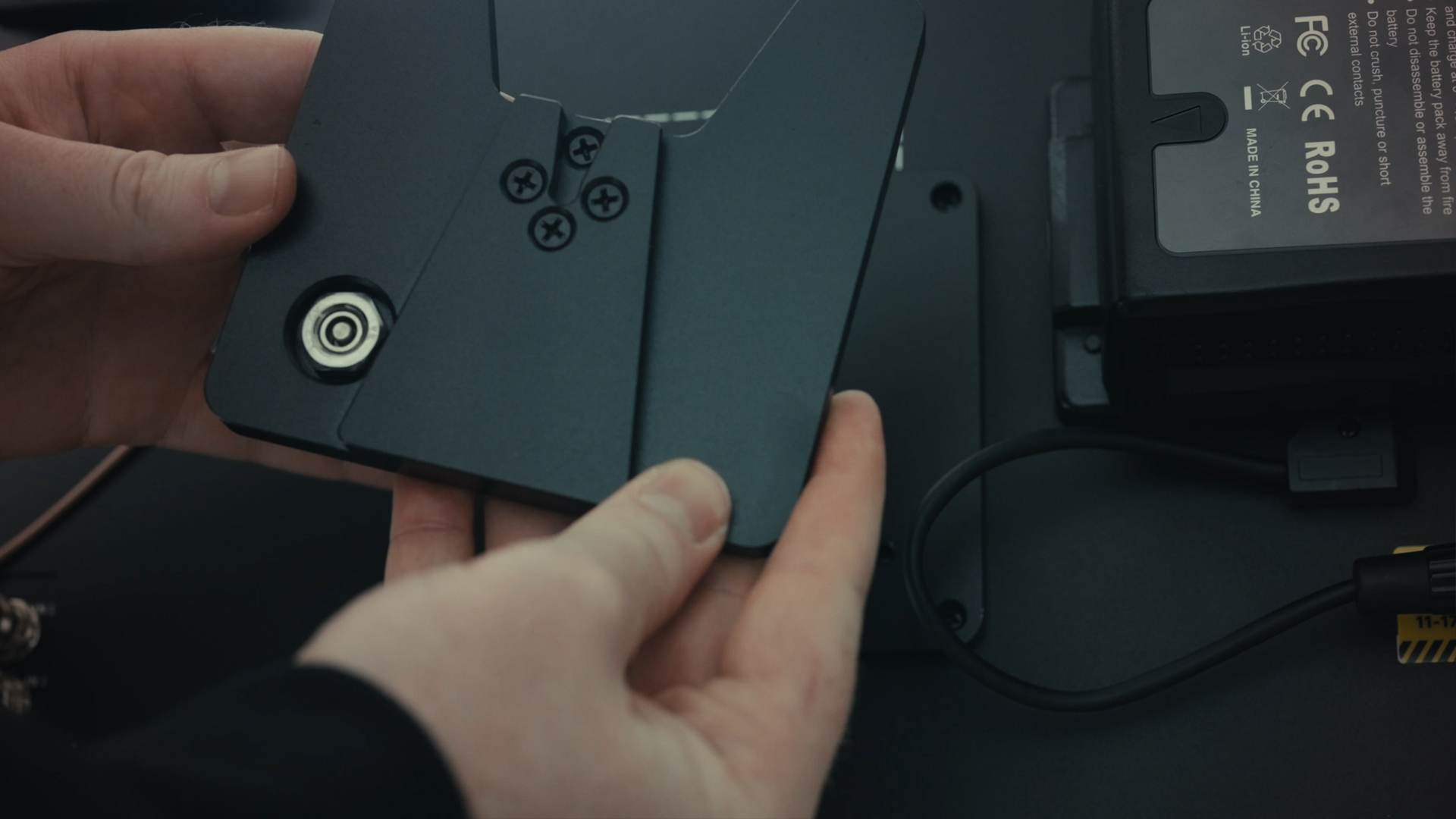
And now it's not going to go anywhere.
So you can take the monitor and literally turn it 90 degrees and put it on the stand like I have this one here.

Okay, disconnected my cameras real quick just to show you guys how to go from horizontal to vertical.
Right now it's just free spinning on the stand, and you lock it off on the stand, and then you unlock this right here. And then you can pull everything just straight up.
So then you can turn it, and then you can physically slide it back down onto the dovetail, and then lock it off, and it's not going to come off that little dovetail.
I wish you didn't have to physically slide this off this little dovetail here. It would be awesome if this was just a swivel mount that you could use.
There are swivel mounts out there, and this is just a, I think it's a 400 millimeter visa mount.
So, the next upgrade I might be getting for this is just a swivel mount that you don't have to disconnect the monitor from the stand.
Layout Options For Multiple Feeds
If you go into the menu, you can actually turn all of the feeds with just this button.
You can turn it to, if you have three feeds, they can actually be vertically shown. So, if you have these feeds, you can see more real estate on having three feeds if you vertically mount the monitor.
That's pretty smart.
But if you have four up, then you can use this one like we had before, and it just shows you the four up feeds.
There's also a couple of unique ones that if you have a master and you have two or three other feeds on the side that you just want to show the client, but one of them needs to be larger, you can have one larger and three smaller over here.
There's a ton of different layouts over here, but I've really only used the four up just for my very quick testing.
And I love having the ability to actually switch between all of these different modes and be able to pick out which one you want or go full screen and see one large feed at a time.
It's been really cool, and it took a lot to set this up with the Blackmagic Design, the Multiview 4.

Automatic Feed Detection
One thing I love about the monitor as well, it's smart enough to know if you only have three feeds, it'll automatically detect which ones you have.
I'll just go to the vertically mounted horizontal feeds, if that makes any sense.
But it's smart enough to know which feeds you have.
And you don't have to say feed one or SDI one, and then if you change SDI to two or three, then you have to come in here and mess around with it.
It's smart enough to just know what SDI and HDMI cables are plugged in.
The Plastic Screen Protector
Okay, back to the right side of the camera.
The plastic screen protector. Osee sent me this with this monitor.
This can technically be used with the Mega 22S, but this is nice because it's a sheet of clear acrylic that, for some reason, when clients see something, they're like, "Hey, can we take this and make it right here?"
And they're actually touching this screen protector and not your monitor because you can just spray Windex on this thing and clean it.
But if you're spraying Windex on your monitor, it could blur it or scuff it. I don't want to damage the actual screen.
So, I love having the screen protector. That's a very welcomed addition.

Using It Outside
One thing I could see being an issue with this is using it outside, though.
I haven't used this outside yet. I've literally just took this out of the box and played around with it in the studio.
So, one thing I would recommend is keeping the sun hood that comes with the monitor close if you're going to be using this outside because the screen was a little reflective to begin with.
It is 1500 nits, so you can kind of overpower some of the reflections by just cranking up the brightness.
That being said, this is definitely going to increase the reflections if you're using it outside.
So, I would definitely use it with the sun hood if you're going outside.
Background Design Differences
A few subjective things here.
I like the background of the S4 better than just the regular 22S.
Let me unplug all these feeds and show you what they look like.
Okay, apparently that low battery thing was not a joke because my monitor died.
So, I've unplugged all of the things, and this is what the Osee Mega 22S looks like.
It's really bright, and I wish I could change the background because the monitor is clear, but the Osee logo is a little bit jaggy if I'm being really picky.
And seeing it next to this one, all of the background blocks, it's honestly not a super ideal background. It's just kind of plain corpory.
This is a little bit more approachable. This is a little bit more creative.
I think if you pulled up and this was the background of your monitor when you were setting everything up, it would be a little more professional than this one.
Not saying this matters a lot, but all things considered, I prefer this background over that one.
It would be even better if I could change and make it my own background, though.
I don't think I can do that. If I can, please let me know in the comments down below. I haven't figured that one out yet.
Power Cable And Battery Options
Another thing I wrote down is that this monitor didn't come with a power cable.
This is just a regular AC power cable. You can get them for like $5 on Amazon. They come in all kinds of different lengths.
So maybe it's better if the monitor was cheaper and you can choose which length of cable you wanted, but this is an additional purchase.
If you want to use it with a Vmount battery, this is what the Vmount battery plate looks like on the back.
You can power it with Vmount battery, or they also include a gold mount adapter.
So depending on what battery you have, you can use those.
I usually use this monitor on my cart, like I have the 22S here.
And it's using the DJI power battery I have right below here.
And I have a power strip on the side of my cart. So I'm powering all of my stuff with a regular AC power adapter.
I'm not using Vmount batteries unless I'm traveling super light, not using the cart, but I need Vmount battery power somewhere else.
Which isn't very often.
Until I bought this cable for this, I was using it with Vmount power, but it was really interesting that this wasn't included in the box.
Again, it's like five bucks on Amazon, but it's one thing you have to buy.
Is The 22S4 Worth The Extra $261?
So is the Mega 22s4 woth the extra $261 over the Mega22s?
Is the multicam and horizontal vertical stand mounting worth the extra $261 to you? For me it is.
I will be using this monitor out in the field. Specifically, I'll be just telling clients, here's two or three cameras or four cameras. If you want to see camera one, press this, go to SDI one, and then it'll be big on the screen.
So, I'm very interested to see how my clients like that.
I have a feeling they're just going to be pressing that input button all day and just seeing different feeds.
I think it would be more interactive for a client to do that.
Before it was just like here's the four feeds, and here's what you get.
We can't make one larger because it's just a limitation of the hardware.
So, I'm really interested to put this out and put it through its paces.
Let me know what you guys think of these monitors in the comments down below.
And thank you guys for sticking around to the end, and I'll see you in the next one.